

Importing custom fonts into Canva and Duda.
Tutorial by Emma
05/24/2024
Imagine you are creating a logo and the fonts in Canva just aren't cutting it, or a client logo has a font that isn't in the Duda library. What can be done? It's super simple!
After you have identified and downloaded the TTF or OTF file of the font you want for your logo, headers, or anything else, it takes only a few clicks to get it loaded into your Canva or Duda library and ready to use!
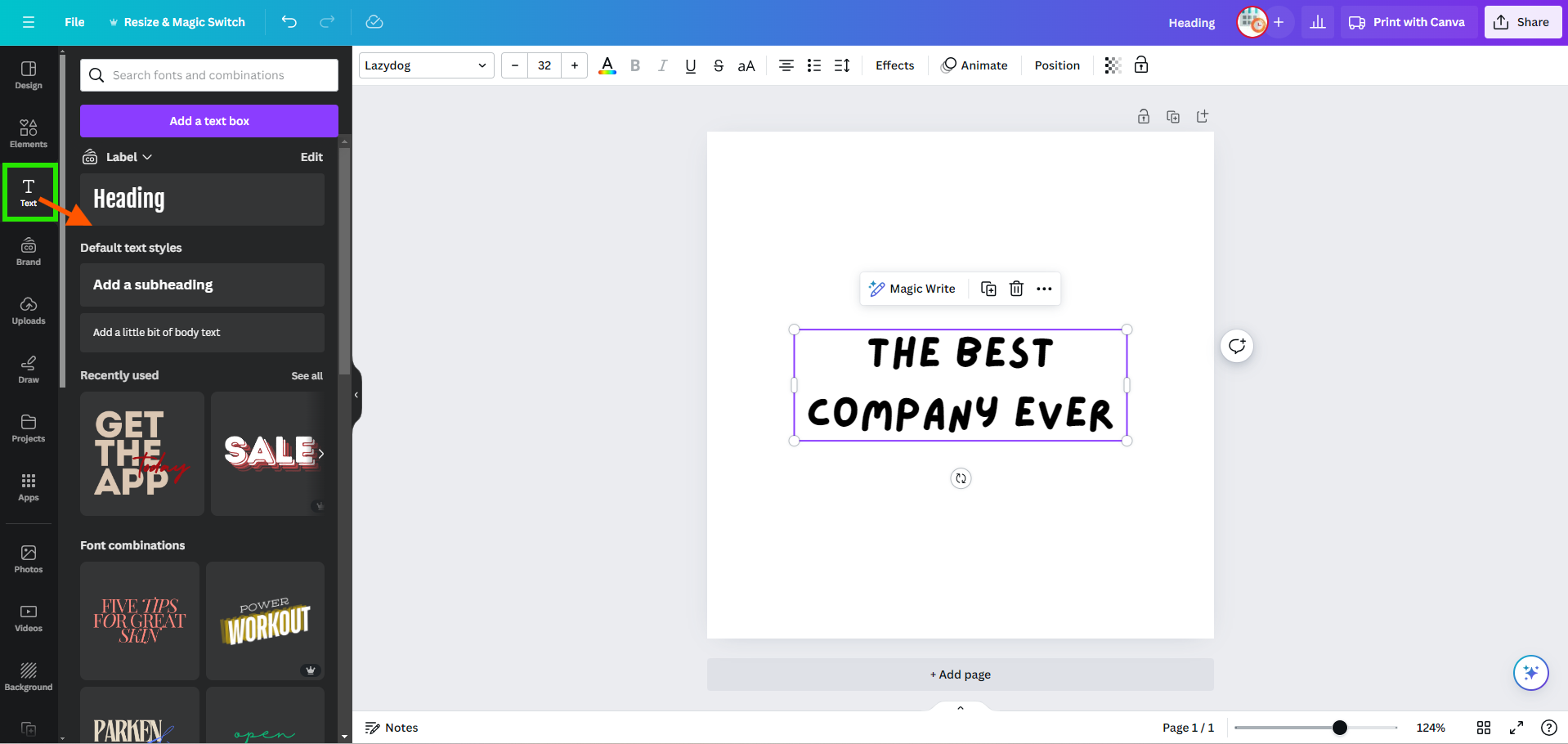
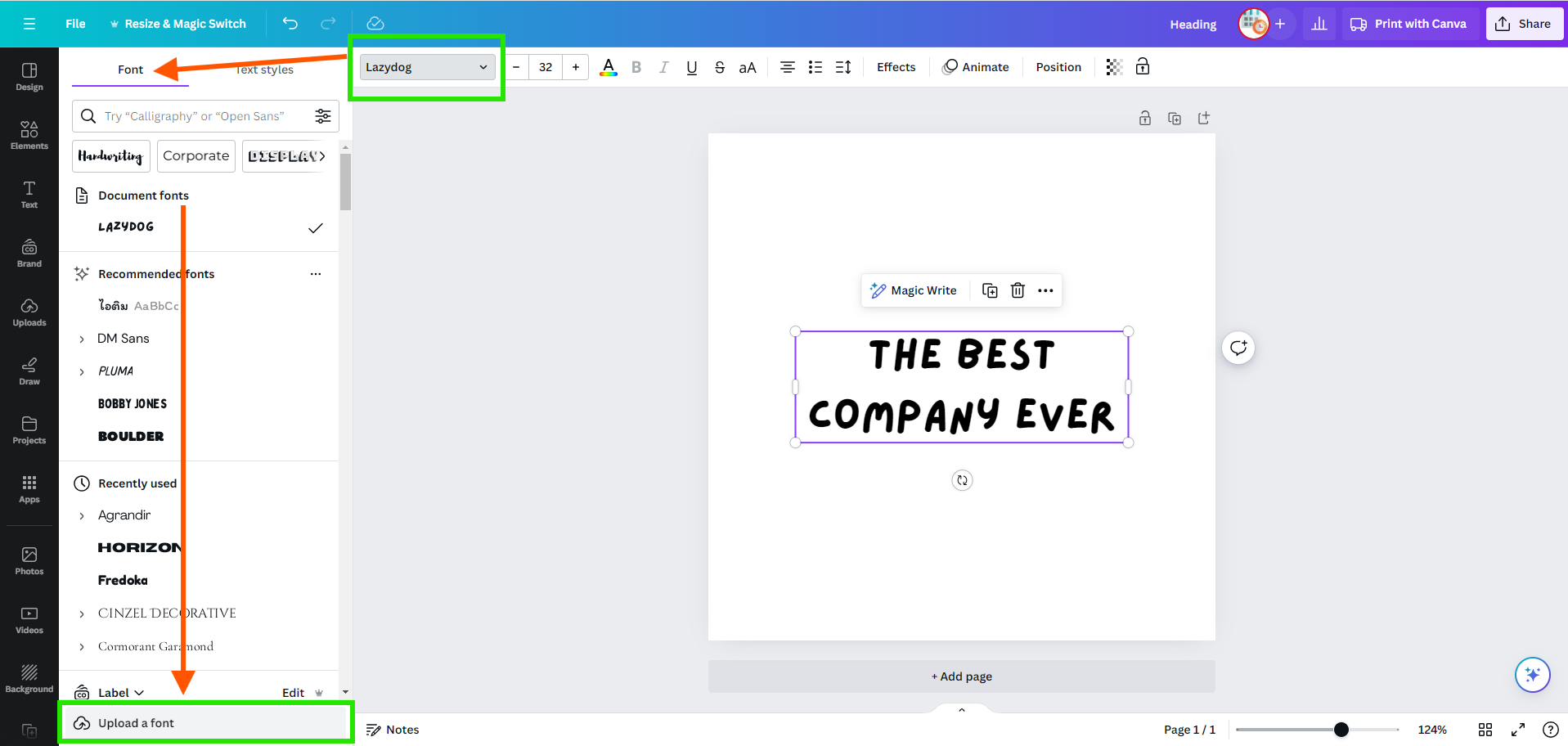
Select "Text" from the menu in Canva and create some type to get access to the "Font" toolbar at the top of the page. With your textbox selected, look to the bottom of the "Font" tab until you see "Upload a font." Click here, and you will be prompted to select your saved font file and upload it to Canva, where it will instantly be added to the existing library.
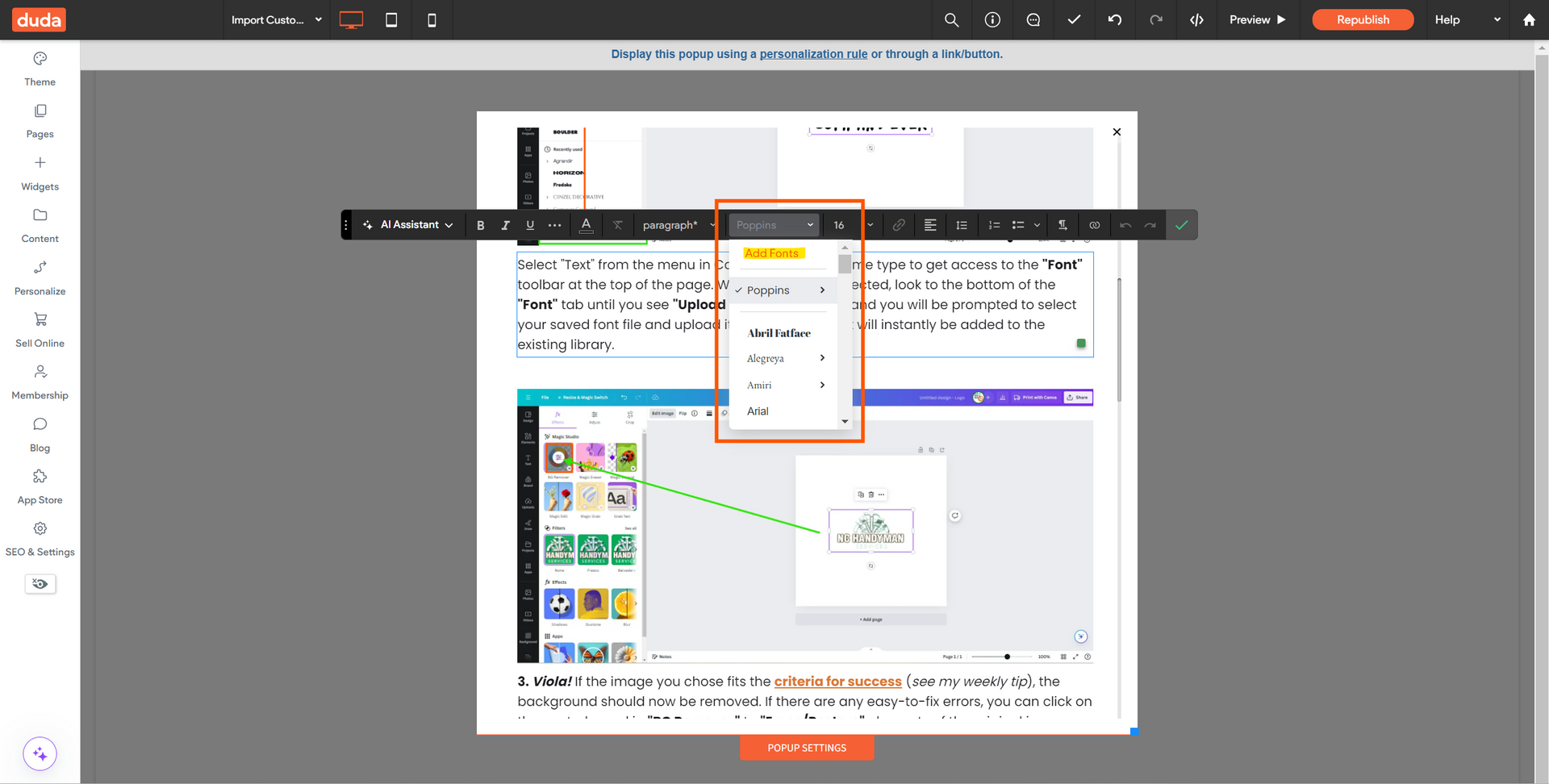
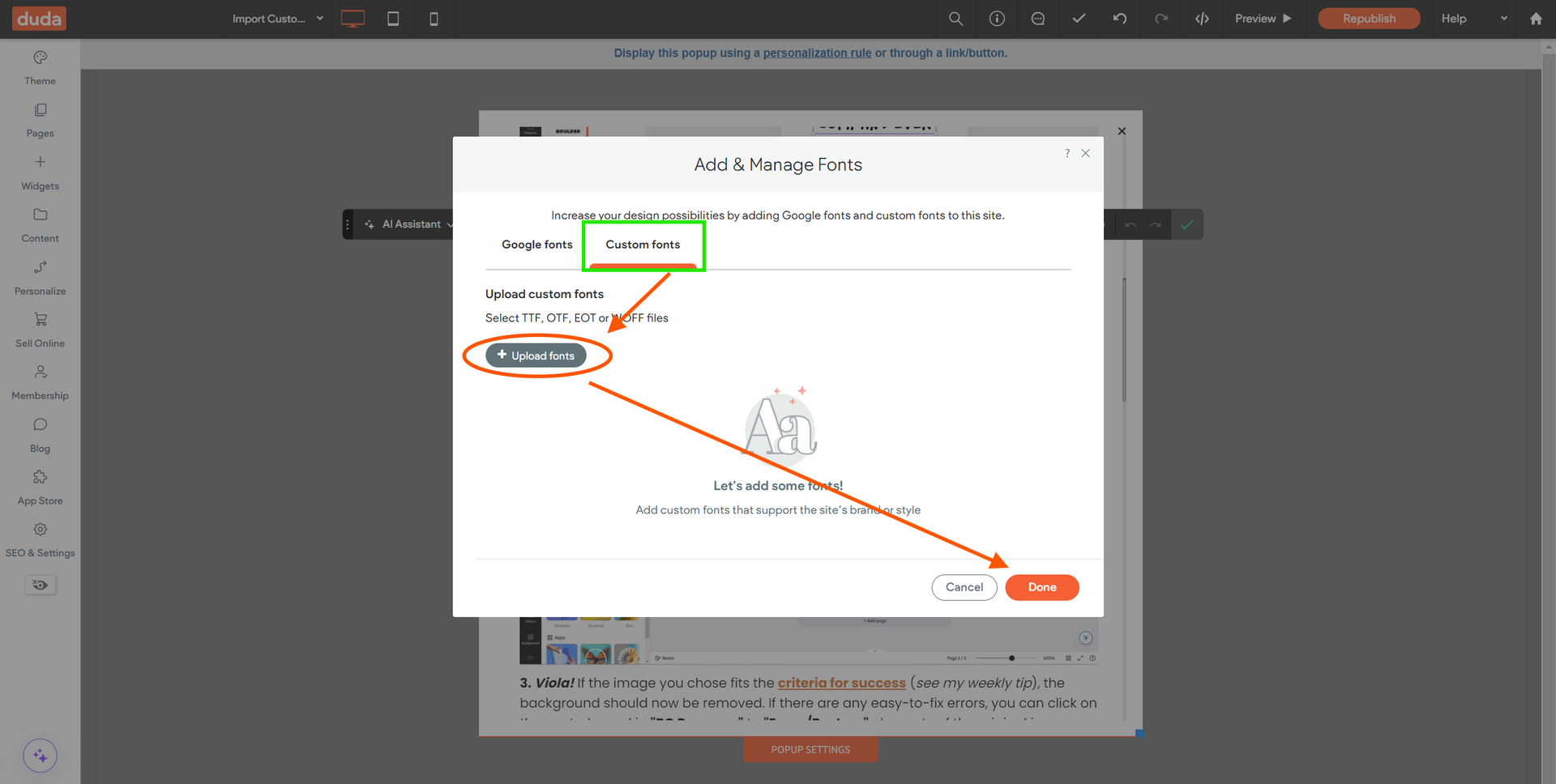
In Duda, the process is not that different. Just select "Add Fonts" from the text editor toolbar, then either select a Google font (lots of good options) or click "Custom Fonts" to upload your saved file, and it will instantly be added to the Duda font library, ready to be used on your site.
Pro Tip: A custom font will only be saved to that site's particular font library, not across all sites on Duda, so if you want to use it again on another site, you will need to repeat this process.